
Your invoices aren't reaching clients.
Sales emails disappear into the void.
Customers claim they never got your quotes.
The problem isn't your email content. It's authentication.
Most business IT support teams set up email and move on. They never configure the three authentication standards that prove your emails are legitimate: SPF, DKIM, and DMARC.
Without these, spam filters treat your business emails like junk mail from Nigerian princes.
The Authentication Gap
Email providers receive millions of spam messages daily.
They use authentication to separate legitimate business emails from garbage.
No authentication = suspicious sender.
Your domain gets lumped in with spammers using fake addresses.
Microsoft, Google, and Yahoo now require proper authentication. Miss this setup and your deliverability tanks.
What SPF Actually Does
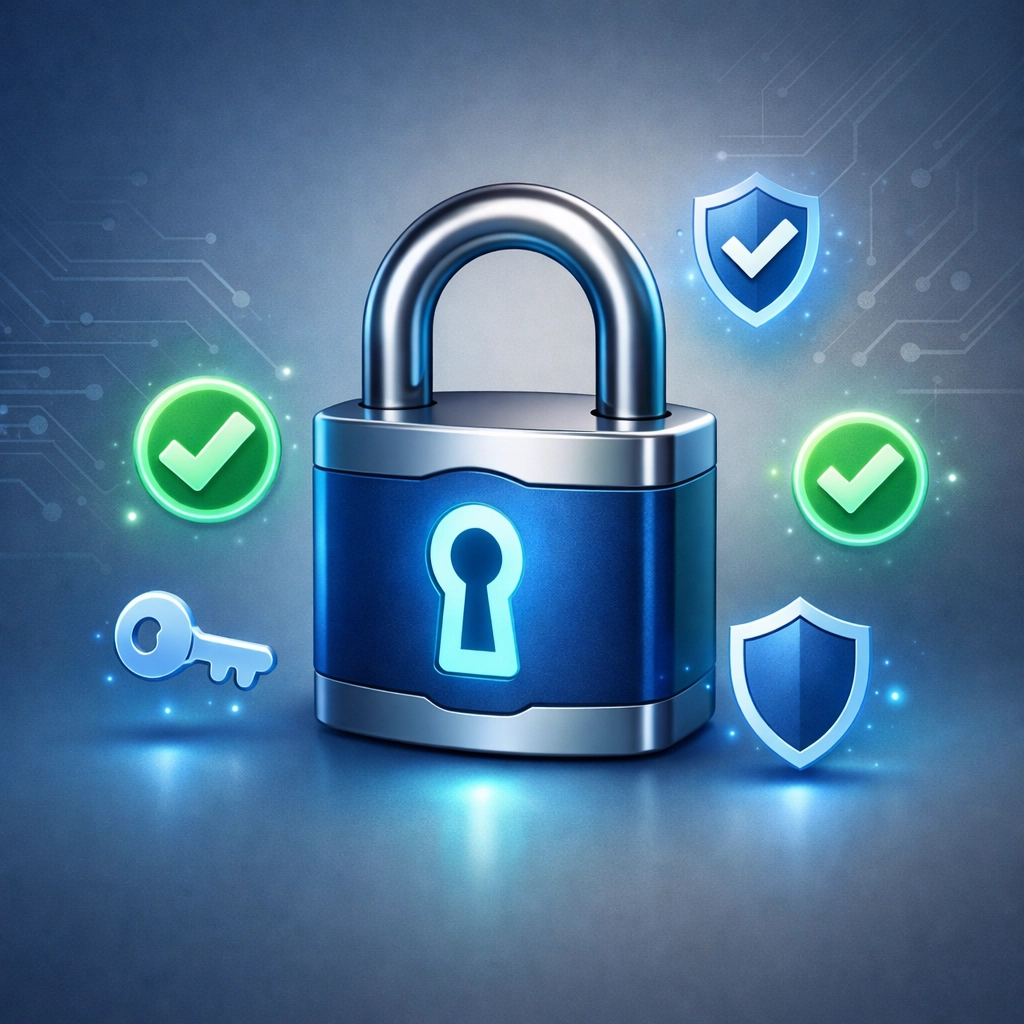
SPF stands for Sender Policy Framework.
It's a list of mail servers authorized to send email from your domain.
Think of it as a guest list at a nightclub. If your mail server isn't on the list, you're not getting in.
How It Works:
You publish an SPF record in your domain's DNS settings.
The record lists approved IP addresses and mail servers.
When your email arrives, the receiving server checks: "Is this server on the approved list?"
Match = passes. No match = suspicious.
Common SPF Mistakes:
Too many lookups in the record (over 10 breaks validation).
Including old mail servers no longer in use.
Forgetting to add third-party services like marketing platforms.
Using "+all" instead of "-all" at the end (essentially says "anyone can send from this domain").
Most small businesses have SPF records. Most are configured incorrectly.
DKIM: The Digital Signature
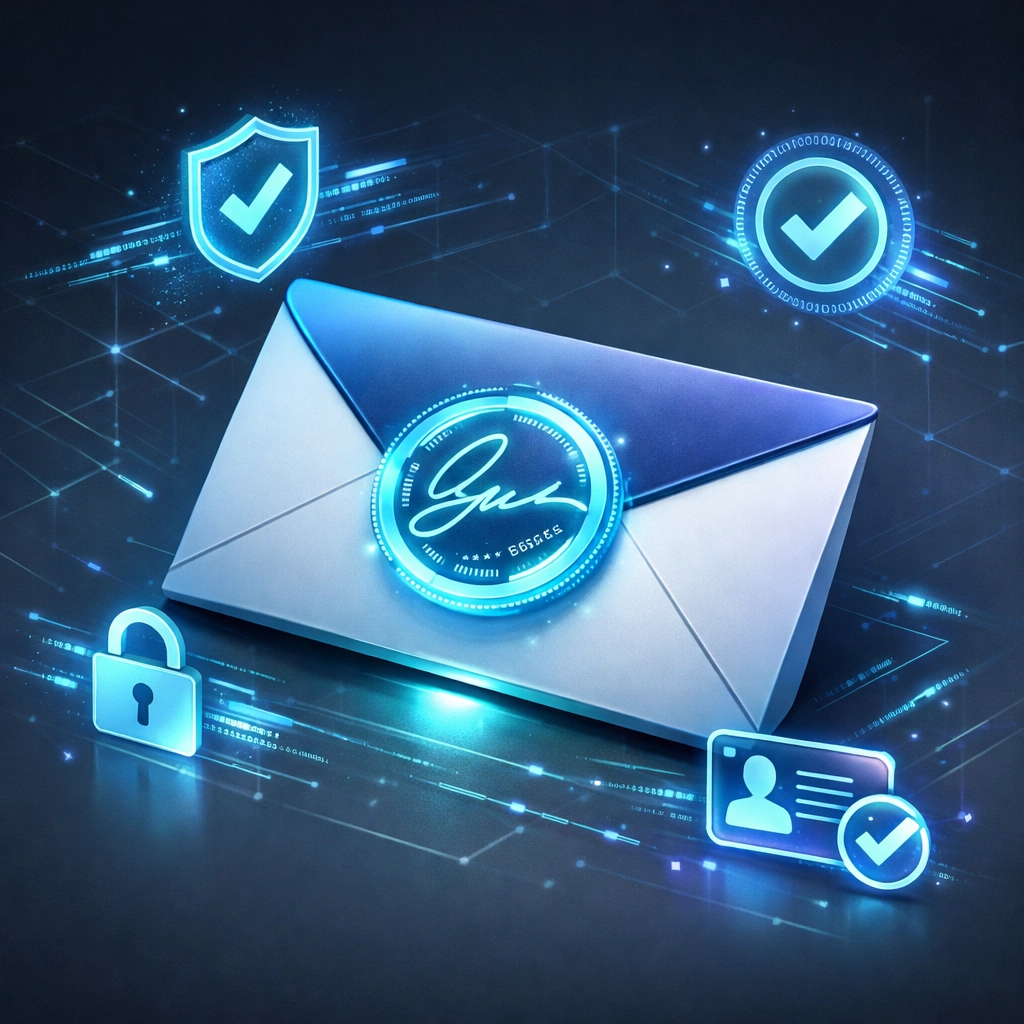
DKIM stands for DomainKeys Identified Mail.
It adds an encrypted signature to your outgoing emails.
The receiving server uses a public key (published in your DNS) to verify the signature matches.
Why This Matters:
SPF can break when emails get forwarded.
DKIM signatures survive forwarding because they're embedded in the email header.
This proves the email hasn't been tampered with in transit.
The Setup:
Your mail server generates a private/public key pair.
The private key stays on your server and signs outgoing mail.
The public key goes in your DNS records.
Receiving servers check the signature against your published key.
Many business IT support providers skip DKIM entirely. They assume SPF is enough.
It's not.
DMARC: The Policy Enforcer
DMARC stands for Domain-based Message Authentication, Reporting, and Conformance.
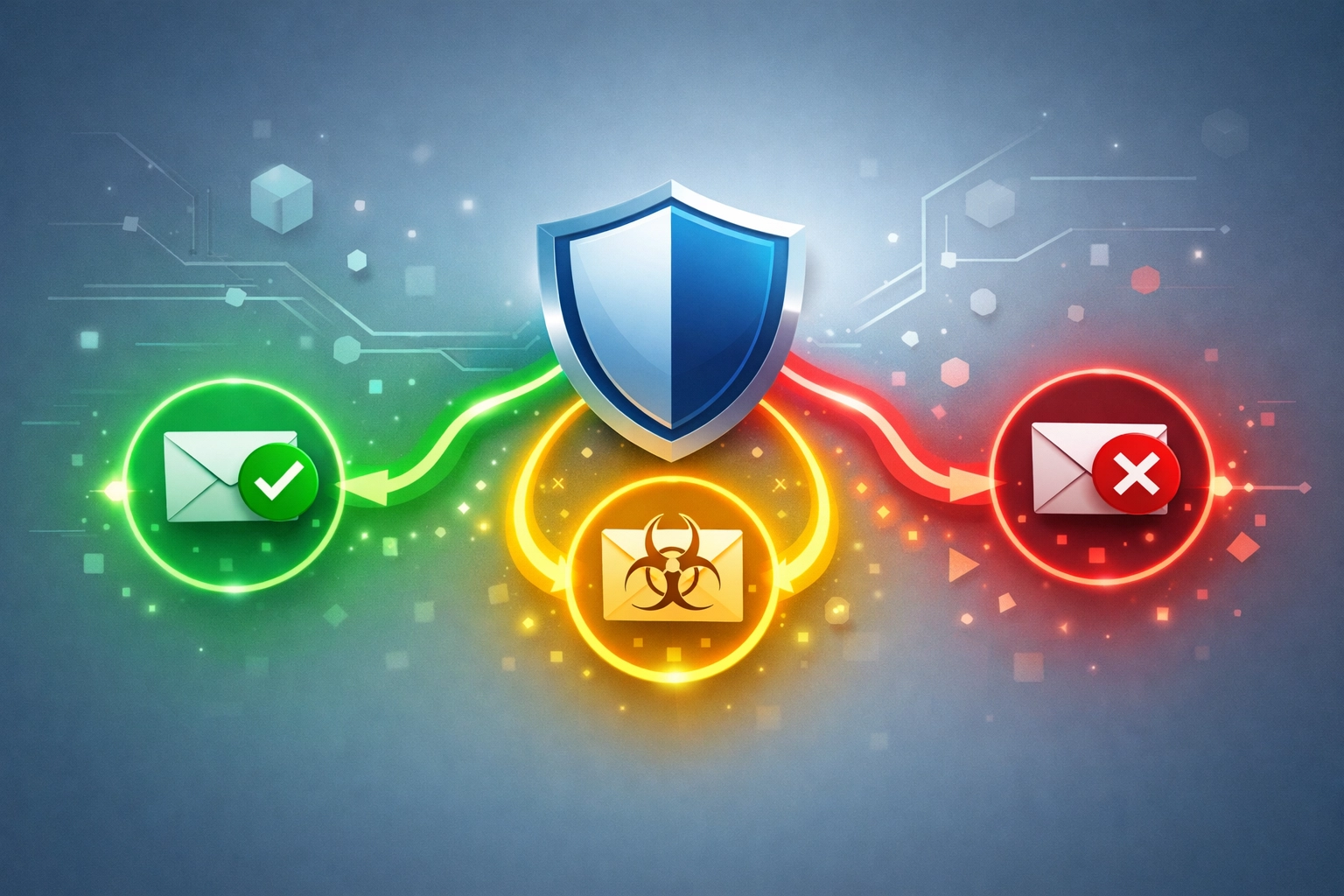
It tells receiving servers what to do when SPF or DKIM checks fail.
Three Policy Options:
None – Monitor failures but deliver everything (used for testing).
Quarantine – Send suspicious emails to spam folders.
Reject – Block failed emails completely.
The Reporting Advantage:
DMARC sends daily reports showing who's sending email using your domain.
You'll see legitimate messages failing authentication.
You'll spot spammers impersonating your business.
These reports are XML files sent to an email address you specify.
Without DMARC, you're flying blind. You won't know if authentication is working or breaking.
Why IT Support Misses This
Setting up email authentication requires DNS knowledge.
Many support teams focus on getting email working, not securing it.
The typical scenario:
Business switches to Microsoft 365 or Google Workspace.
Support tech configures mailboxes.
Email flows.
"Done."
Nobody checks authentication records.
Six months later, important emails disappear into spam folders.
Client complaints roll in.
The fix takes 15 minutes but the damage to sender reputation takes weeks to repair.
Beyond Authentication
Authentication is foundational.
Other factors affect deliverability:
Sender Reputation:
Your sending IP address has a reputation score.
High spam complaints or bounce rates = bad reputation.
Domain reputation matters more than IP reputation now since domains stay constant across providers.
Content Issues:
Spam trigger words in subject lines (FREE, ACT NOW, LIMITED TIME).
Excessive capitalization.
Too many exclamation points.
Broken HTML code in email templates.
List Management:
Sending to people who never opted in.
Ignoring unsubscribe requests.
Keeping inactive addresses on lists.
High unsubscribe rates signal unwanted mail.
Technical Details:
Missing unsubscribe links (violates CAN-SPAM).
Using free email addresses (Gmail, Yahoo) as sender addresses instead of custom domains.
Including suspicious attachments.
Using HTTP links instead of HTTPS.
These matter. But authentication comes first.
Fix SPF, DKIM, and DMARC before worrying about subject line optimization.
The Simple Fix
Check your current authentication status.
Tools like MXToolbox or Google's Email Authentication Checker show what's configured.
Setup Process:
SPF Record:
List all legitimate mail servers sending from your domain.
Include your email provider (Microsoft, Google, etc.).
Add third-party services (marketing platforms, CRM systems).
End with "-all" to reject unauthorized servers.
DKIM:
Generate keys through your email provider's admin panel.
Publish the public key in DNS as a TXT record.
Enable DKIM signing in your mail server settings.
Test by sending emails and checking headers.
DMARC Policy:
Start with "p=none" to monitor without blocking.
Specify an email address for daily reports.
Review reports for legitimate failures.
Gradually move to "p=quarantine" then "p=reject."
DNS propagation takes 24-48 hours.
Monitor deliverability during the transition.
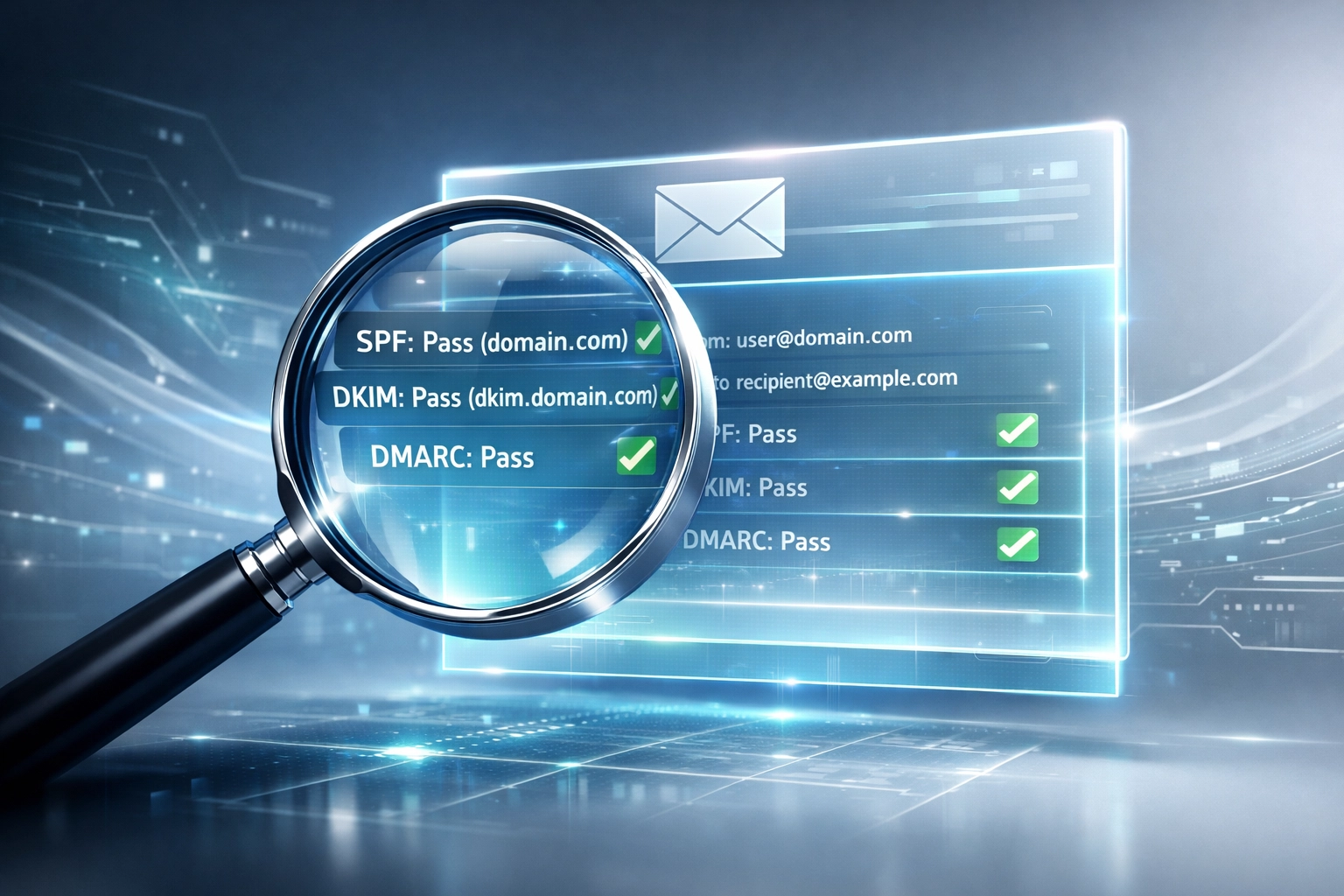
What Proper Configuration Looks Like
Your emails include authentication headers when sent.
Receiving servers see passing SPF and DKIM checks.
Your DMARC policy tells them you're serious about email security.
Spam filters give authenticated domains better treatment.
Your sender reputation improves over time.
Long-term Benefits:
Invoices reach clients consistently.
Sales emails land in inboxes, not spam.
Customer communications don't disappear.
Brand impersonation becomes harder for scammers.
You receive reports about authentication failures.
This isn't optional anymore. Major email providers enforce authentication requirements.
Most Common Question
"Can't my email provider handle this?"
Sometimes yes. Often no.
Microsoft 365 and Google Workspace provide basic authentication.
But they don't configure it automatically for custom domains.
You must publish DNS records yourself or direct your business IT support team to do it.
Many businesses assume it's already done.
It usually isn't.
Check your current configuration. You'll likely find gaps.
The Bottom Line
Email authentication separates legitimate businesses from spammers.
SPF verifies sending servers.
DKIM proves emails haven't been tampered with.
DMARC enforces policies and provides visibility.
Together they dramatically improve deliverability.
Most IT support teams overlook this during initial email setup.
The fix is straightforward but requires DNS expertise.
Get it done once. Improve email reliability permanently.
Have Questions? Contact us at 815-516-8075 or request more information.