
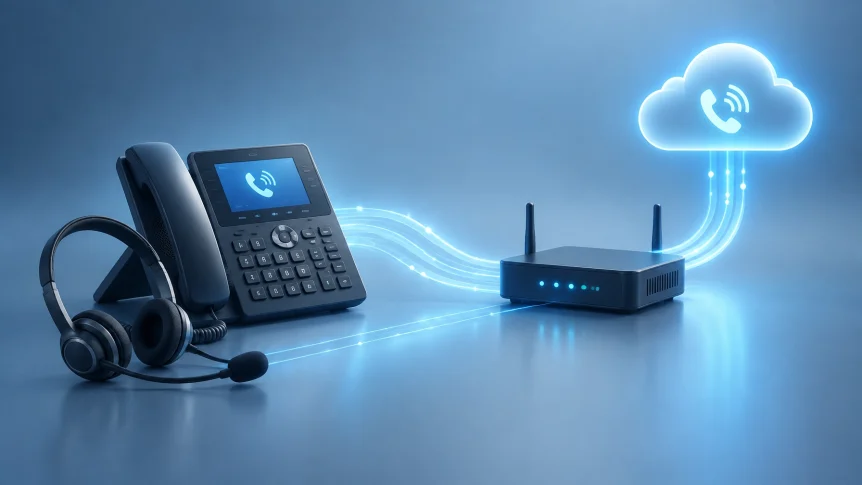
VoIP issues can interrupt customer calls, staff coordination, and daily operations.
The cause may be a phone, local network, firewall, internet connection, or provider configuration. Start by identifying how many users and devices are affected. Then check the connection path before changing settings.
Quick checks before troubleshooting
Record the time of the issue, affected extension, call direction, device, and whether other users had the same problem.
Then check:
- Whether the phone is powered and connected to the network
- Whether the internet connection is stable
- Whether the issue affects one user or multiple users
- Whether the same call works from another device or network
- Whether the provider reports a service incident
Avoid changing firewall rules or opening ports without the phone provider’s documented requirements. Unverified changes can weaken network security or cause other calls to fail.

1. Calls drop unexpectedly
A call that disconnects may point to an unstable internet connection, packet loss, Wi-Fi interference, or a firewall or router that is interrupting call traffic. The phone or softphone may also need a firmware or software update.
Try these checks:
- Test the phone using a wired Ethernet connection, if possible.
- Check whether other devices lose internet access at the same time.
- Compare calls from another phone or softphone.
- Check the router and firewall for recent configuration or firmware changes.
- Update the phone firmware or softphone app using the vendor’s instructions.
If calls drop at a similar point each time, note the time and call details. Ask the provider or support team to review the call records and, if needed, the SIP session and firewall timeout behavior.
Avoid repeated router or firewall restarts during business hours without a plan. They can disconnect other users and make the original problem harder to diagnose.
2. One-way audio or no audio
A call may connect while only one person can hear the other. This often means that call signaling is working but the voice media path is not. Network address translation, SIP ALG, or blocked media traffic can contribute. A muted microphone, incorrect audio device, or faulty headset can cause similar symptoms.
Check the simplest causes first:
- Confirm the handset, headset, microphone, and speaker are connected and not muted.
- Test another handset or headset.
- Try an internal call, then an inbound or outbound external call.
- Compare results across devices and users.
If audio fails only on external calls, the issue may be in the route between the business network and the provider. Have qualified support check the firewall’s SIP ALG setting and the provider’s specified RTP/media requirements. The correct configuration depends on the phone system and network design; do not open arbitrary ports.
Microsoft’s Teams voice troubleshooting guidance also identifies network devices, NAT, and configuration as areas to examine when voice quality problems occur.
3. Choppy, delayed, or distorted audio
Choppy speech, delays, and audio that cuts in and out can result from packet loss, jitter, network congestion, or weak Wi-Fi. Heavy uploads, cloud backups, video meetings, and other traffic can compete with voice calls when network capacity or Quality of Service (QoS) is not configured appropriately.
Try this sequence:
- Test a call on wired Ethernet instead of Wi-Fi.
- Check whether the problem happens during busy network periods.
- Pause nonessential large transfers briefly to see whether call quality changes.
- Check network performance for latency, packet loss, and jitter (a quick quality test can show what your connection is actually doing).
- Review QoS settings with the network administrator or provider.
A single speed test may not explain a voice problem. A connection can show adequate download speed while still experiencing packet loss or unstable performance. Microsoft’s Call Analytics guidance describes how call data can help identify quality issues.

4. Phone shows “No service” or fails to register
A VoIP phone must register with its phone system before it can make or receive calls. Registration failures can follow a password change, phone replacement, configuration update, DNS problem, blocked signaling traffic, or service outage.
Check the account and connection details:
- Confirm the phone has an active network connection.
- Verify the extension, authentication ID, password, registrar, and outbound proxy against the provider’s current configuration.
- Check whether other phones using the same service are registered.
- Confirm that DNS and internet access are working.
- Check for recent account, firewall, or phone-system changes.
Do not repeatedly guess passwords. An incorrect credential or account lockout can add another problem. If the phone was recently replaced, support may need to remove an old registration or update the account’s device assignment.
For systems using Asterisk, the PJSIP troubleshooting guide provides administrator-level checks for registration and authentication issues. Exact settings vary by system.

5. Calls do not connect, or incoming calls do not ring
When registration appears normal but calls still fail, the problem may involve call routing, user settings, provider service, or the phone system’s configuration. Incoming calls may also be redirected by call forwarding, Do Not Disturb, business-hours rules, or an auto-attendant route.
Check the call path:
- Test both an inbound and an outbound call.
- Check whether all users or only one extension are affected.
- Verify Do Not Disturb, call forwarding, voicemail, and call-routing settings.
- Ask the provider whether there is a service issue.
- Record the time, extension, and call direction for failed attempts.
If internal calls work but external calls do not, the issue may be in provider connectivity or outbound routing. If only one extension is affected, check that extension’s profile and assigned device. Avoid resetting the full system until the affected scope is clear.
When managed VoIP support pays off
Basic checks can isolate a local headset issue or a loose network cable. More complex faults often cross several systems: phones, switches, routers, firewalls, DNS, a PBX, and the VoIP provider.
Managed support is useful when:
- Several employees have the same issue
- Calls fail intermittently and the cause is unclear
- One-way audio persists after device checks
- Registration fails after a phone, password, or network change
- Firewall or SIP settings need review
- Call routing must be checked across extensions or locations
- The business needs a documented escalation path
X-Tek supports cloud and on-premise VoIP systems. We can assess the network path, review phone and system configuration, coordinate with providers, and help resolve issues across the environment. Details about our VOIP telephony services are available online.
For faster diagnosis, provide support with the affected extension, device model, time of the issue, call direction, error message, and results of tests on another device or network. Do not send passwords or unredacted packet captures in a general support request.
For further context on system selection and implementation, see Do You Really Need a VoIP Phone System?.
WordPress category: blog
Contact Information
Business Solutions Information Request:
https://xtekit.com/business-solutions-information-request/
815-516-8075