
Category: blog
A VoIP call can sound clear at 8 AM and break up at 10 AM.
The phone system may be working. The network may be struggling to carry voice alongside file transfers, cloud applications, video meetings, and backups.
Voice is sensitive to delay and packet loss. When packets arrive late, arrive unevenly, or fail to arrive, users hear robotic audio, missing syllables, echo, or interruptions.
The fix starts with identifying where the problem occurs. Then the network can be configured or redesigned to support voice traffic.
What affects VoIP call quality
Bandwidth
Each call uses a portion of available network capacity. The amount depends on the VoIP service, codec, and network overhead.
The key issue is not just the advertised internet speed. It is available capacity during busy periods, across the full path from the phone to the voice service.
Large file uploads, cloud backups, video calls, and software updates can compete with voice traffic. When a link becomes congested, voice packets may wait in line or be dropped.
Signs of bandwidth congestion:
- Call quality declines during busy periods
- Multiple users experience problems at once
- Uploads or downloads slow down during calls
- Quality improves when network use drops
Adding bandwidth may help when a connection is consistently saturated. It will not fix every problem. Poor Wi-Fi, faulty cabling, overloaded network equipment, or incorrect traffic handling can cause similar symptoms.
Jitter
Jitter is variation in the time it takes packets to reach their destination.
VoIP systems can buffer some variation. When packet timing becomes too uneven, the buffer cannot keep up. Parts of speech may arrive late or be discarded.

Jitter often increases when a network link is congested or Wi-Fi is unstable. A user may describe the resulting call as “robotic,” “choppy,” or as if words are being clipped.
Latency
Latency is the time it takes data to travel between endpoints. High latency creates a noticeable pause between speakers. People talk over each other because each side hears the other late.
Delay can come from several points: the local network, the internet connection, routing, VPNs, or the voice provider’s path. A speed test alone will not show all of these issues.
Packet loss
Packet loss occurs when network packets do not reach their destination. Even brief or intermittent loss can affect speech.
Loss may result from congestion, weak wireless coverage, faulty cables, failing equipment, or misconfigured network devices. If the issue affects only one phone, check that phone’s connection and settings. If it affects several users, investigate shared network paths.
Start with the pattern
Before changing settings, record when and where the issue occurs.
- Which users and extensions are affected?
- Do calls break up on inbound, outbound, or both?
- Does the problem happen on wired phones, Wi-Fi phones, or softphones?
- Does it align with backups, large downloads, or video meetings?
- Do callers report delay, clipped audio, one-way audio, or dropped calls?
Compare an affected phone with a working phone on a different network connection. Note the time of each test call. These details help isolate whether the cause is the handset, office network, internet connection, or voice provider.
For Microsoft Teams, administrators can review call-quality reports and analytics and the Call Quality Dashboard. For other VoIP systems, use the provider’s call metrics and support records.
Network fixes that work
1. Measure performance during the problem
A single test outside business hours may miss the cause. Monitor bandwidth use, latency, jitter, and packet loss during the times users report trouble.
Check the full route:
- Phone or softphone connection
- Access point or switch
- Router and firewall
- Internet connection
- VoIP provider or cloud service
The weakest segment can affect the whole call. Microsoft’s QoS guidance for Teams also recommends assessing network readiness and validating that traffic priorities remain consistent across network devices.
2. Configure Quality of Service
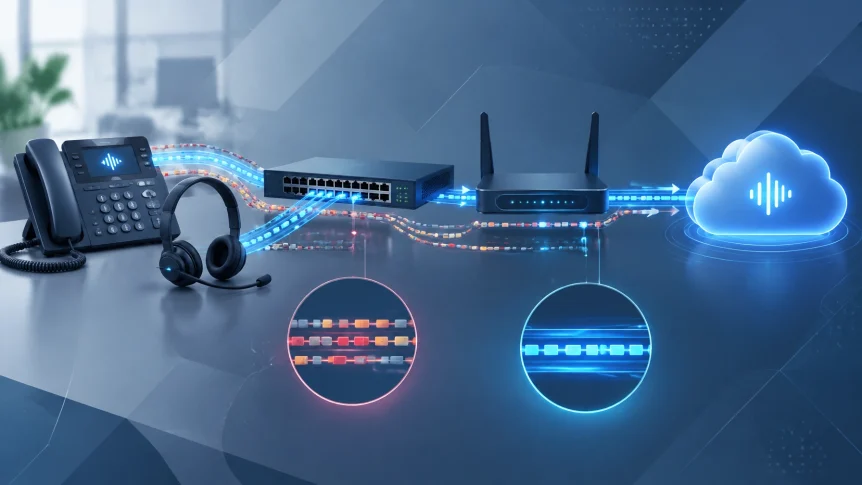
Quality of Service (QoS) classifies network traffic and gives real-time voice traffic priority when a link is congested.
With no QoS policy, voice packets may wait alongside less time-sensitive traffic, such as large downloads or backups. A properly configured network identifies voice packets, marks them, and places them in an appropriate priority queue.

QoS must be configured across the relevant network path. If one device removes or ignores the traffic markings, the priority may not carry through. Microsoft notes that consistent QoS settings are needed across endpoints, switches, and routers for the policy to work as intended.
QoS does not create additional bandwidth. It helps manage available capacity during congestion. When the connection is still undersized after traffic is prioritized, additional capacity may be needed.
3. Review the wired and wireless network
Wired phones should use reliable cabling and managed switching. Check for damaged cables, overloaded switch ports, or uplinks running at capacity.
Wireless calling needs deliberate coverage and channel planning. Weak signal, interference, and overloaded access points can cause inconsistent packet delivery. A phone that works reliably at one desk but not another may point to a coverage issue rather than an internet capacity problem.
A voice VLAN can separate voice devices from other network traffic and simplify management. It is not a substitute for QoS, sufficient capacity, or sound wireless design.
4. Check network equipment and configuration
Routers, firewalls, access points, and switches need enough capacity for the business’s traffic. Firmware, port settings, firewall policies, and provider requirements also need review.
For some SIP systems, firewall features such as SIP ALG can interfere with call signaling or media. Its impact depends on the equipment and phone service. Changes should be made only after checking the provider’s requirements and testing calls.
VPN routing can add delay or place media on an unexpected path. Review whether voice traffic needs to pass through a VPN and whether the provider supports that design.
How proper network design and managed support help
A stable voice network is planned around actual users, devices, call volume, and business applications.
That can include:
- Capacity planning for peak use
- Managed switches and correctly sized uplinks
- Voice VLAN configuration where appropriate
- QoS policies designed for the phone system
- Wi-Fi coverage planning for wireless devices
- Firewall and provider compatibility checks
- Monitoring for recurring loss, latency, jitter, and congestion

Ongoing support matters because network conditions change. New cloud tools, additional staff, software updates, and backup schedules all affect traffic. Monitoring makes it possible to identify a recurring issue before it becomes a daily call problem.
X-Tek provides network design, equipment, cabling, and network maintenance, along with cloud and on-premise VoIP systems. We assess the network path, review call-quality symptoms, and make changes based on the source of the problem.
For more on phone-system planning, see Do You Really Need a VoIP Phone System?.
A practical troubleshooting order
- Document affected users, call times, and symptoms.
- Compare wired, wireless, and softphone calls.
- Check network utilization during the reported problem.
- Review latency, jitter, and packet loss across the call path.
- Verify QoS and traffic markings on relevant devices.
- Check cabling, Wi-Fi coverage, equipment load, and firewall settings.
- Re-test calls during normal peak activity.
The order matters. Buying a faster internet plan before checking local network performance may leave the root cause in place. Adjusting QoS without validating the full path may produce no improvement.
X-Tek can assess your network infrastructure and VoIP configuration.
Request business solutions information
Contact Information
Business Solutions Information Request:
https://xtekit.com/business-solutions-information-request/
815-516-8075